文件上传模块
1. 整体架构
数据上传模块主要包含以下几个核心部分:
- 文件选择与格式识别
- 发布服务配置
- 传输列表管理
1.1 主要组件结构
dataUploader/
├── components/                     # 组件目录
│   ├── borderTagBlock.vue         # 边框标签块组件
│   ├── centerLon.vue             # 中央经线组件,转换度分秒和小数格式
│   ├── filePicker.vue            # 文件选择组件
│   ├── floatButton.vue          # 悬浮按钮组件-传输列表使用
│   ├── loadingRing.vue          # 加载环组件-传输列表使用
│   ├── outline-tree/            # 大纲树组件-用于上传文档
│   ├── publishServiceConfigureDialog/  # 发布服务配置对话框
│   │   ├── defaultForm/       # 默认表单
│   │   ├── dwgDxfForm/        # DWG/DXF表单
│   │   ├── fbxSkpForm/        # FBX/SKP表单
│   │   ├── ifc3dxmlCgrForm/   # IFC/3DXML/CGR表单
│   │   ├── lasForm/           # LAS表单
│   │   ├── projectionForm/    # 投影表单
│   │   ├── rvtDgnForm/        # RVT/DGN表单
│   │   ├── tifForm/           # TIF表单
│   │   ├── index.vue          # 发布服务配置对话框入口文件
│   │   ├── readme.md          # 发布服务配置对话框说明
│   │   ├── types.ts           # 发布服务配置对话框类型声明
│   │   └── util.ts            # 工具函数
│   ├── transmissionList.vue      # 传输列表组件
│   ├── uploadRequirement.vue     # 上传要求组件
│   └── zipFormatChoseDialog.vue  # ZIP格式选择对话框
├── logger/                       # 日志模块
├── styles/                       # 样式文件
├── types/                       # 类型定义
├── utils/                       # 工具函数
│   ├── commonUtils.ts           # 通用工具
│   ├── configs.ts               # 配置常量
│   ├── initUppy.ts             # Uppy上传初始化
│   ├── parse_dwg_dxf_zip_has_prj_worker.ts    # DWG/DXF解析Worker
│   ├── parse_LRP_format_worker.ts             # LRP格式解析Worker
│   ├── parse_shp_zip_integrity_worker.ts      # SHP完整性检查Worker
│   ├── parse_tiff_format_worker.ts            # TIFF格式解析Worker
│   ├── parse_tiff_format_worker_stream_ver.ts # TIFF流式解析Worker
│   ├── parseZipMetaXml-worker.ts             # ZIP元数据解析Worker
│   ├── service.ts                            # 服务函数
│   ├── uploadCallbacks/                      # 上传回调
│   │   └── shapefile/                       # Shapefile回调
│   │   └── tiff/                            # tiff回调
│   ├── worker-utils.ts                      # Worker工具
│   ├── zip-worker.ts                        # ZIP解析Worker
│   └── zipParser.ts                         # ZIP解析器
└── index.vue                                # 组件入口文件
2. 主要功能模块
2.1 文件选择与格式识别 FilePicker 组件
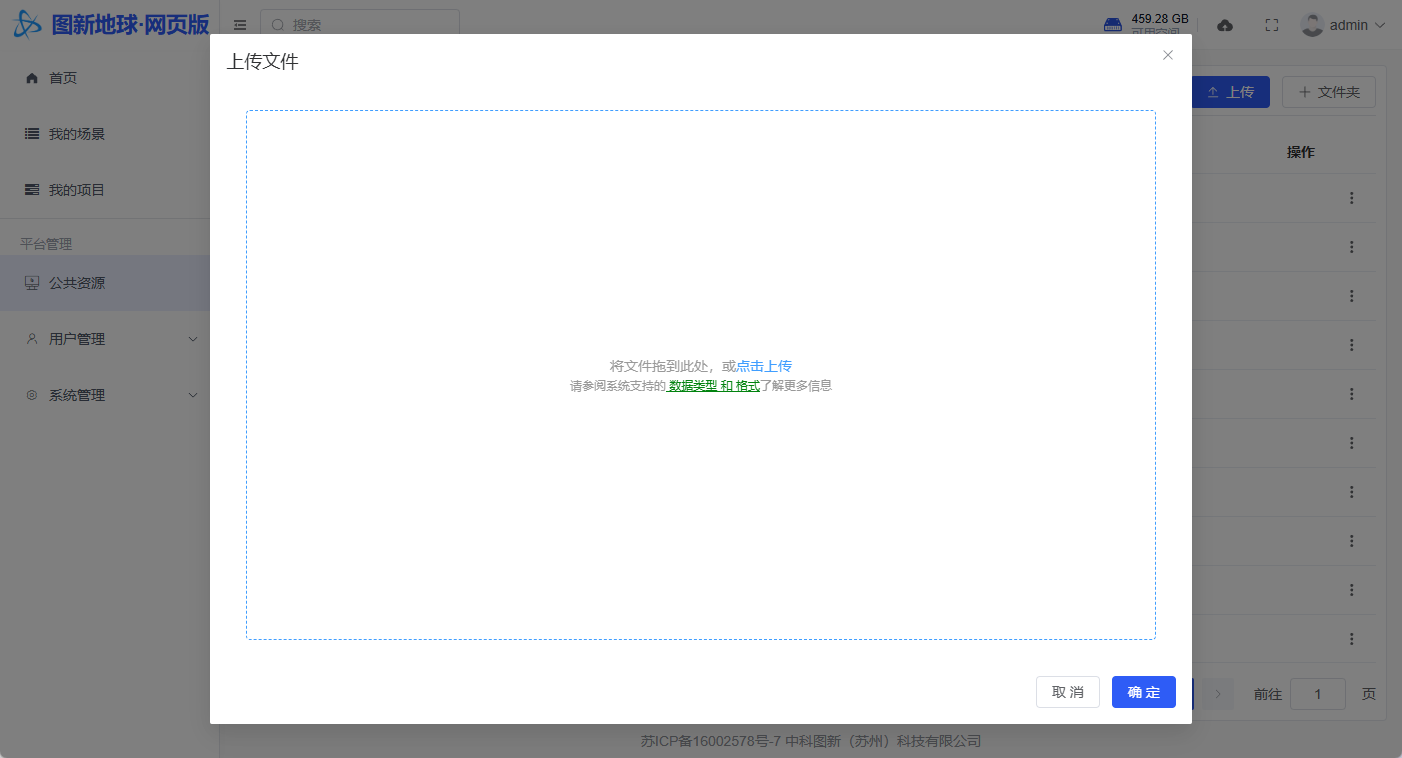
文件选择与预处理模块负责处理用户文件的选择、验证和初始化操作,包括:
- 文件选择(拖拽/点击)
- 文件验证(大小/格式/重复性)
- 文件预处理(格式识别/初始化配置)
- 文件上传文档
2.1.1 初始化流程
tus 协议
Tus 协议是一种开源的断点续传文件上传协议,其主要目标是解决大文件上传过程中因网络中断或客户端异常关闭而导致的上传失败问题。
tus‑js‑client 是基于 Tus 协议的 JavaScript 实现,适用于浏览器和 Node.js 环境,其主要运行逻辑和使用步骤如下:
初始化上传对象 开发者首先需要创建一个
tus.Upload实例,并传入要上传的文件对象以及配置参数。配置参数通常包括:- 上传终端 URL:服务器支持 Tus 协议的上传地址。
- chunk 大小与并发设置:用于控制每次上传的数据块大小及并发请求数。
- 重试策略:在上传过程中遇到网络或其他错误时,自动进行重试以保证上传的成功率。
- 元数据和自定义头部:可以传递文件名、文件类型等元数据,以及其他自定义 HTTP 请求头。
创建上传会话 在正式上传文件数据之前,客户端会向服务器发送一个
POST请求,用以告知服务器启动一个新的上传会话。服务器在响应中返回一个唯一的上传 URL,该 URL 用于后续的文件分块上传。分块上传(PATCH 请求) 文件上传过程中,tus‑js‑client 将文件切分为多个数据块,每个数据块通过一个
PATCH请求上传至服务器。在每个请求中:- 客户端会包含当前上传的偏移量(
Upload-Offset),以便服务器能够将数据正确地拼接起来。 - 服务器收到请求后,会更新已上传数据的偏移量,并在响应中告知客户端最新的偏移状态,从而支持后续的断点续传操作。
- 客户端会包含当前上传的偏移量(
错误处理与重试机制 在上传过程中,如果遇到网络中断或其他异常情况,tus‑js‑client 会根据预设的重试策略自动重试上传操作。 此外,库还提供了暂停和恢复上传的接口,允许用户或开发者在必要时手动控制上传流程,确保上传操作的健壮性。
事件回调与进度更新 为了方便开发者监控上传状态,tus‑js‑client 提供了多个事件回调,例如:
- onProgress:实时返回上传进度,可用于更新 UI。
- onSuccess:上传成功后触发,便于执行后续处理逻辑。
- onError:上传过程中出现错误时调用,开发者可在此进行错误处理或提示用户。
tus‑js‑client 续传原理
tus‑js‑client 利用 fingerprint 机制来确保文件上传能够在中断后继续进行,而不必从头开始上传。
1. 什么是 fingerprint?
fingerprint 就是对文件的一种“数字签名”或唯一标识。默认情况下,tus‑js‑client 会根据文件的一些基本属性(例如文件名、文件大小、最后修改时间等)生成一个唯一字符串,这个字符串用于标识同一个文件。这样,即使文件上传过程中出现网络中断,再次上传同一文件时,通过相同的属性计算出的 fingerprint 是一致的,从而可以识别出之前已经开始的上传会话。
2. fingerprint 在续传中的作用
在上传开始时,tus‑js‑client 会按照配置的或默认的 fingerprint 函数生成文件的唯一标识。接下来,上传客户端会在本地存储(例如 localStorage)中查找是否有对应这个 fingerprint 的上传 URL。具体流程如下:
- 计算 fingerprint:客户端首先计算文件的 fingerprint。
- 查找续传记录:利用这个 fingerprint 作为 key,在本地存储中查找之前保存的上传 URL。如果找到了,这意味着之前的上传任务已经创建了一个上传会话,并保存了上传地址。
- 续传操作:如果找到了上传 URL,客户端便会使用该 URL 发送 PATCH 请求,从记录的上传偏移量继续上传剩余的数据。
- 新上传会话:如果没有找到记录,则会发起新的上传会话,并在上传过程中将生成的上传 URL 与 fingerprint 关联存储,方便后续续传。
这种机制确保了即使在网络中断或者浏览器刷新后,客户端也能够通过相同的 fingerprint 找回之前的上传状态,从而实现真正的断点续传。
3. 自定义 fingerprint 函数
tus‑js‑client 允许开发者通过配置选项来自定义 fingerprint 函数。例如,如果默认的文件属性不足以唯一标识文件,开发者可以提供一个自定义函数,基于更多的属性或特定的算法来生成 fingerprint。这样可以保证即使在特殊场景下,也能准确识别文件,从而实现续传。
uppy 介绍
Uppy 是一款开源的 JavaScript 文件上传库,由 Transloadit 团队开发。它采用模块化设计,能够轻松集成到各种前端项目中,同时支持从本地、远程以及云存储服务等多种来源获取文件。无论你需要实现简单的文件选择,还是处理断点续传、大文件上传、文件预览及编辑,Uppy 都能提供高效且优雅的解决方案。 Uppy 支持多种上传方式,包括:TUS/AWS S3/XHR 等,同时提供了一个用户界面可进行上传。
数据中心中只使用 Uppy core 和 Tus 上传器,用于实现文件上传功能,不使用 Uppy 的 UI 组件。
uppy 初始化配置
uppy 的 tus 上传器是基于 tus-js-client 实现的,所以 tus 上传器的配置和使用方式与 tus-js-client 类似。
1. 基础配置
const uppy = useUppy({
  uppyOptions: {
    onBeforeFileAdded: (file) => {
      if (file.size === 0) {
        ElMessage.error('文件为空,无法上传');
        return false;
      }
      file.id = file.meta[uppy_meta_custom_id_field] as string;
      return file;
    }, //空文件检查
  },
  tusOptions: {
    chunkSize: dataUploaderStore.upload_chunk_size ?? 6 * 1024 * 1024, //上传分片大小,影响上传性能
    endpoint, //上传地址
    headers: ((file: FileWithMeta) => {
      return {
        [CommonHeaderEnum.AUTHORIZATION]: `Bearer ${Storage.getToken()}`,
        dataId: file?.meta?.dataId,
        fileId: file.id,
      };
    }) as any, //设置header
    removeFingerprintOnSuccess: true, //上传成功后删除指纹
    //实现超时处理
    onBeforeRequest: async (req) => {
      try {
        const id = req.getHeader('fileId');
        const xhr = req.getUnderlyingObject();
        const originalOnReadyStateChange = xhr.onreadystatechange;
        xhr.timeout = ds_config.tus_timeout;
        xhr.ontimeout = function () {
          uppy.emit(
            'upload-error',
            dataUploaderStore.get_upload_file(id)?.file,
            new Error('tus_timeout'),
            null
          );
        };
        xhr.onreadystatechange = function () {
          // 如果原来的 onreadystatechange 存在,则先调用它
          if (originalOnReadyStateChange) {
            originalOnReadyStateChange.apply(xhr, arguments);
          }
          if (xhr.readyState === 4) {
            dataUploaderLogger.log(id, {
              event: 'tus_upload_requestStatus_change',
              details: {
                status: req.getUnderlyingObject().status,
                headers: (req as any)._headers,
                url: req.getURL(),
                method: req.getMethod(),
              },
            });
          }
        };
      } catch (error) {
        console.error(error);
      }
    },
    //响应头处理,修改Location头,因为默认的Location头是相对路径
    onAfterResponse: (req, res) => {
      const getHeader = res.getHeader.bind(res);
      res.getHeader = (header: string) => {
        if (header === 'Location') {
          return import.meta.env.VITE_API_URL + getHeader(header);
        }
        return getHeader(header);
      };
    },
  },
});
uppy 事件处理
1. files-added
- 处理新添加的文件
- 初始化上传文件记录
- 清理临时元数据
2. upload-error
- 错误日志记录
- 错误状态设置
- 处理超时和其他错误类型
- 触发后续上传任务
3. upload-progress
- 更新文件上传进度
- 验证进度有效性(上传暂停后再开始时,防止进度回退)
- 设置文件上传状态
4. upload-success
- 更新文件状态为成功
- 记录上传完成事件
- 触发后续上传任务
预处理器
addPreProcessor
- 检查本地存储中的上传记录
- 复用已存在的上传信息
- 初始化新的上传任务
- 获取上传参数
- 调用 uploadInit 接口
- 设置文件元数据
2.1.2 两种选择方式
- 点击上传
- 拖拽上传
2.1.3 文件处理流程(files_add)
2.1.3.1 LRP 格式解析&ZIP 格式处理
参考parse_LRP_format_worker.ts和zip-worker.ts
lrp格式解析:lrp的文件的8-12字节,用来判断是否为地形数据
zip格式处理:读取zip所有文件名后缀,用于后端判断
2.1.4 发布配置流程
添加到列表后,根据格式,需要进行发布配置,包括格式选择和投影配置设置
2.1.4.1 格式选择弹窗
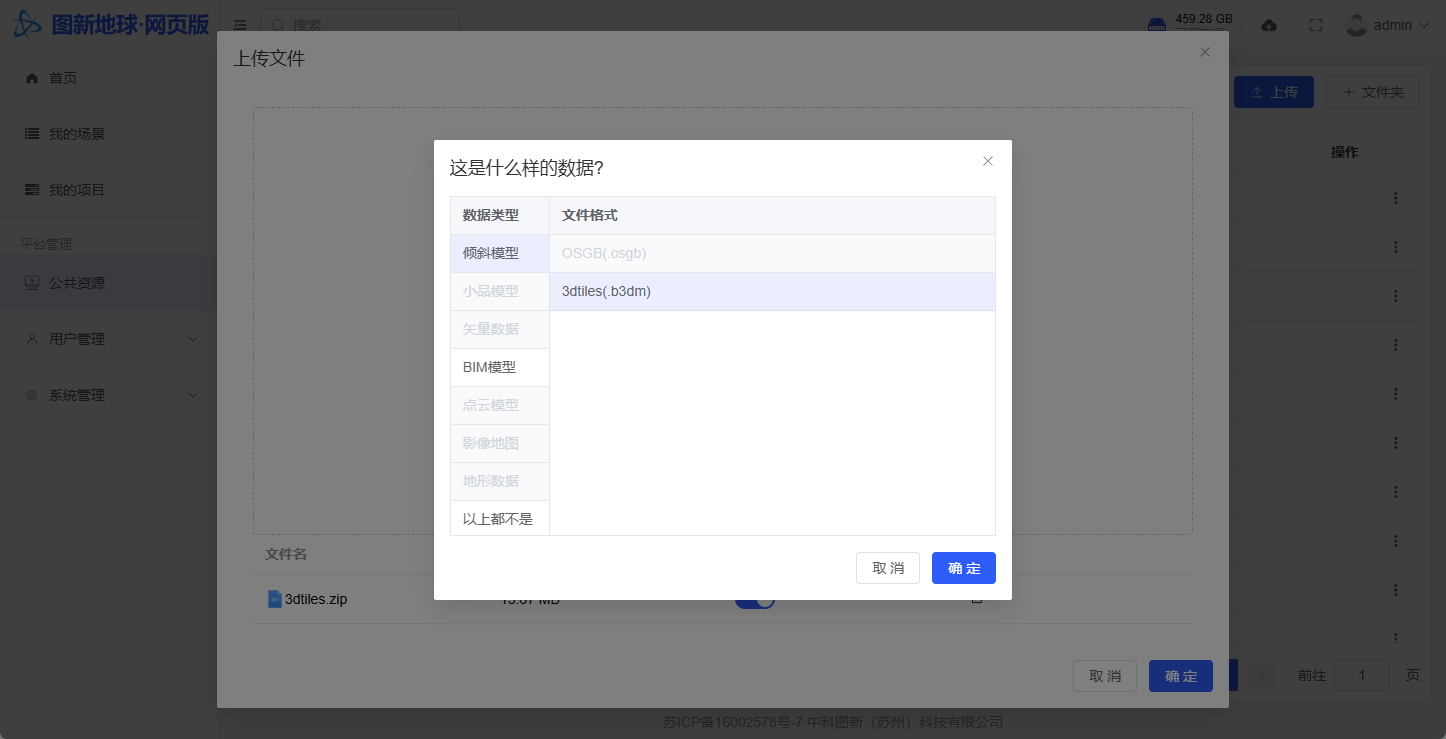
参考zipFormatChoseDialog.vue;
type Props = {
  middleFormat?: string;          // 中间格式-根据config.ts,显示childrenFormats中的格式
  forbiddenFormats?: string[];    // 禁用的格式列表
  perferedFormat?: string;        // 首选格式默认选中的格式
}
2.1.5 上传准备流程
2.1.5.1 uppy 上传
参考 initUppy.ts uppy.addPreProcessor 流程图
2.2 发布服务配置
uploadInit 接口
type uploadInitData = {
  bizType: string | undefined; //数据的业务类型(参考下表)
  fileName: string | undefined; //文件名(带后缀名)
  cfgJson: string | undefined; //配置信息(参考下表)(isPublish为"0"时cfgJson为"")
  isPublish: string; //是否发布 "0"为不发布,"1"为发布
  fileType: string | undefined; //文件类型(参考下表)
  projectId: string | undefined; //项目id
  folderId: string | undefined; //文件夹id,公共数据为"0",且projectId为""
};
//上传初始化
function uploadInit(data: uploadInitData) {
  data.cfgJson = encodeURIComponent(data.cfgJson ?? '');
  data.fileName = encodeURIComponent(data.fileName ?? '');
  return request({
    url: '/admin/data/upload',
    method: 'post',
    data: data,
    headers: {
      'Content-Type': 'multipart/form-data',
    },
  });
}| name | fileType | bizType | cfgJson(对象形式,传递时传递 json 字符串) | 文件格式(上传的文件) | 备注 |
|---|---|---|---|---|---|
| 3dtiles-BIM(3dtiles bim) | 3dtiles | 5 | {} | .zip | |
| 3dtiles-LAS(3dtiles 点云) | 3dtiles | 4 | {} | .zip | |
| 3dtiles-oblique(3dtiles 倾斜模型) | 3dtiles | 3 | {} | .zip | |
| 3dxml | 3dxml | 5 | 参考 rvt-dgn-3dxml-cgr-ifc 投影配置 | .3dxml | |
| cgr | cgr | 5 | 参考 rvt-dgn-3dxml-cgr-ifc 投影配置 | .cgr | |
| dgn | dgn | 5 | 参考 rvt-dgn-3dxml-cgr-ifc 投影配置 | .dgn | |
| dwg | dwg | 6 | 参考坐标系模式-投影坐标系 | .dwg | |
| dxf | dxf | 6 | 参考坐标系模式-投影坐标系 | .dxf | |
| fbx-BIM(fbx bim) | fbx | 5 | {}或者参考坐标系模式-投影坐标系 | .zip | |
| fbx-model(fbx 小品模型) | fbx | 8 | {} | .zip | |
| glb | glb | 8 | {} | .glb | |
| gltf | gltf | 8 | {} | .gltf | |
| ifc | ifc | 5 | 参考 rvt-dgn-3dxml-cgr-ifc 投影配置 | .ifc | |
| kml | kml | 6 | {} | .kml | |
| kmz | kmz | 6 | {} | .kmz | |
| las | las | 4 | {}或者参考坐标系模式-投影坐标系 | .las | |
| laz | laz | 4 | {}或者参考坐标系模式-投影坐标系 | .laz | |
| lcad | lcad | 6 | {} | .lcad | |
| lrp | lrp | 2 | {} | .lrp | |
| mbtiles | mbtiles | 1 | {} | .mbtiles | |
| obj | obj | 8 | {} | .obj | |
| osgb | osgb | 3 | 参考osgb 投影配置 | .zip | |
| rvt | rvt | 5 | 参考 rvt-dgn-3dxml-cgr-ifc 投影配置 | .rvt/.zip | |
| shp | shp | 6 | {} | .zip | |
| skp-BIM(skp bim) | skp | 5 | 参考skp 投影设置 | .zip/.skp | |
| skp-model(skp 小品模型) | skp | 8 | {} | .zip/.skp | |
| tif-IMAGERY(tif 影像) | tif | 1 | 参考tif 投影设置 | .tif | |
| tif-TERRAIN(tif 地形) | tif | 2 | 参考tif 投影设置 | .tif | |
| tiff-IMAGERY(tiff 影像) | tiff | 1 | 参考tif 投影设置 | .tiff | |
| tiff-TERRAIN(tiff 地形) | tiff | 2 | 参考tif 投影设置 | .tiff | |
| 普通文件 | 文件后缀名 | 10 | {} | isPublish="0",无法发布 |
投影配置
坐标系模式-投影坐标系
projectParam 由获取-proj4生成
type projectionParams = {
  coordType: 'LonLat';
  projectType: 'prj4';
  centerPosition: string; //模型中心点位置,格式为x,y,z
  ellipsoidEnabled: 0 | 1; //是否使用四七参数,0为否,1为是
  ellipsoidParam: string; //四七参数
  ellipsoidType: 'FourParam' | 'SevenParam'; //四参数或者七参数
  projectParam: string; //proj4参数
  projectPlaneElevation: string; //投影面高
};
投影参数
| 字段 | 值类型 | 注释 |
|---|---|---|
| coordType | 'LonLat' | 坐标系模式 |
| projectType | 'prj4' | |
| centerPosition | string | 模型中心点位置,格式为 x,y,z 对于 fbx-bim、las/laz 来说,为偏移量信息格式为 x 偏移,y 偏移,z 偏移 |
| ellipsoidEnabled | 0 | 1 | 是否使用四七参数,0 为否,1 为是 |
| ellipsoidParam | string | ',,,' | 四七参数 四参数: ${offsetX},${offsetY},${rotate},${scale}X 平移(米),Y 平移(米),旋转(弧度),比例因子(倍) 七参数: ${offsetX},${offsetY},${offsetZ},${rotateX},${rotateY},${rotateZ},${scale}X 平移(米),Y 平移(米),Z 平移(米),X 旋转(秒),Y 旋转(秒),Z 旋转(秒),比例因子(倍) |
| ellipsoidType | 'FourParam' | 'SevenParam' | 四参数或者七参数 |
| projectParam | string | proj4 参数,可由/admin/geo/param/transform 获取;cfgRecord.projInfo |
| projectPlaneElevation | string | 投影面高(dwg,dxf 不传递) |
坐标系模式:ENU 坐标系
type params = {
  centerPosition: string;
  coordType: 'Project';
  srsOriginParam: string;
  srsOriginType: 'Project';
};| 字段 | 值类型 | 注释 |
|---|---|---|
| centerPosition | string | 模型中心点位置(SRS) 格式: 纬度,经度 |
| coordType | 'Project' | 坐标系模式 |
| srsOriginParam | string | 原点坐标(SRSOrigin) 格式: X,Y,Z |
| srsOriginType | 'Project' |
输入 EPSG/导入投影文件
function analysisFileByEpsgCode(epsgCode: string) {
  return request({
    url: '/admin/geo/param/analysisFileByEpsgCode',
    method: 'get',
    params: {
      epsgCode,
    },
  });
}
function analysisFileByPrj(file: File) {
  return request({
    url: '/admin/geo/param/analysisFileByPrj',
    method: 'post',
    data: {
      file,
    },
    headers: {
      'Content-Type': 'multipart/form-data',
    },
  });
}
/**解析epsg/prj接口返回值 */
function parse_epsg_prj(res: any) {
  const {
    datum,
    enName,
    falseEast,
    falseNorth,
    proj4: _proj4,
    meridian,
  } = res.data;
  const { final_ellipsoid_name, final_sub_band_name } = epsgApiFormatTransform({
    datum,
    enName,
  });
  return {
    ellipsoid: final_ellipsoid_name,
    subBand: final_sub_band_name,
    proType: final_ellipsoid_name === 'WGS84' ? 'UTM' : 'Gauss-Kruger',
    centerLon: meridian,
    falseEast: falseEast,
    falseNorth: falseNorth,
  };
  function epsgApiFormatTransform({
    datum,
    enName,
  }: {
    datum: string;
    enName: string;
  }) {
    const final_ellipsoid_name = (() => {
      switch (datum) {
        case 'Xian_1980':
          return '西安80';
        case 'China_2000':
          return 'CGCS2000(国家2000)';
        case 'Beijing_1954':
          return '北京54';
        case 'WGS_1984':
          return 'WGS84';
        default:
          return undefined;
      }
    })();
    const final_sub_band_name = (() => {
      return enName?.split('/')?.[1]?.trim();
    })();
    return { final_ellipsoid_name, final_sub_band_name };
  }
}
解析 OSGB metadata.xml
function analysisFileByMetaXml(file: File) {
  return request({
    url: '/admin/geo/param/analysisFileByMetadata',
    method: 'post',
    data: {
      file,
    },
    headers: {
      'Content-Type': 'multipart/form-data',
    },
  });
}
async function uploadMetaDataAndAnalysis(e: any) {
  const files = (e.target as HTMLInputElement).files!;
  const file = files[0];
  try {
    const res = await analysisFileByMetaXml(file);
    const { type, projectionHeight, txCoordinate, SRSOrigin, SRS } = res.data;
    if (type === 'LonLat') {
      parse_epsg_prj({
        data: txCoordinate,
      });
      const [x, y, z] = SRSOrigin.split(',');
      // projectPlaneElevation = projectionHeight;
      // centerPosition = `${x},${y},${z}`;
      // coordType = 'LonLat';
    } else if (type === 'Project') {
      const [x, y, z] = SRSOrigin.split(',');
      const [lat, lon] = SRS.split(',');
      //srsOriginParam=`${x},${y},${z}`;
      //centerPosition=`${lat},${lon}`;
      //coordType='Project';
    }
  } catch (error) {
    const err = error as any;
    console.error(err);
  }
}
rvt/dgn/3dxml/cgr/ifc 投影配置
坐标系模式:站心坐标
type params = {
  hasProjection: false;
  alignOriginToSitePlaneCenter: boolean;
  position: string;
  rotation: string;
};| 字段 | 值类型 | 注释 |
|---|---|---|
| hasProjection | false | |
| alignOriginToSitePlaneCenter | boolean | 移动原点到场地平面中心,true 为移动,false 为不移动 |
| position | string | 原点地理坐标,以经度,纬度,高程的形式的字符串,默认为 0,0,0 |
| rotation | string | 原点地理坐标-旋转,单位为秒,默认为 0 |
坐标系模式:投影坐标系
type params = {
  hasProjection: true;
  prjContent: string;
  offset: string;
};| 字段 | 值类型 | 注释 |
|---|---|---|
| hasProjection | true | |
| prjContent | string | 配套的.prj 文件的内容字符串 |
| offset | string | 偏移量,以X,Y,Z的形式的字符串,默认为 0,0,0(3dxml/cgr/ifc 不传递这个参数) |
skp 投影设置
//projectionParams 参考投影配置-1.坐标系模式:投影坐标系
type skpParams =
  | ({
      unit: 'm' | 'inch'; //模型单位
    } & projectionParams)
  | {
      unit: 'm' | 'inch'; //模型单位
    };
tif 投影设置
数据内置参数
type tifParams = {
  ellipsoidEnabled: 0 | 1; //是否使用四七参数,0为否,1为是
  ellipsoidParam: string; //四七参数
  ellipsoidType: 'FourParam' | 'SevenParam'; //四参数或者七参数
  filterInvalidValue: 0 | 1; //是否过滤无效值,1为是,0为否
  filterInvalidValueParameter: number; //无效值
};| 字段 | 值类型 | 注释 |
|---|---|---|
| ellipsoidEnabled | 0 | 1 | 是否使用四七参数,0 为否,1 为是,参考[[#1.坐标系模式:投影坐标系]] |
| ellipsoidParam | string | 四七参数,参考[[#1.坐标系模式:投影坐标系]] |
| ellipsoidType | 'FourParam' | 'SevenParam' | 四参数或者七参数,参考[[#1.坐标系模式:投影坐标系]] |
| filterInvalidValue | 0 | 1 | 是否过滤无效值,1 为是,0 为否 |
| filterInvalidValueParameter | number | 无效值 |
手动设置参数
type tifParams = {
  ellipsoidEnabled: 0 | 1; //是否使用四七参数,0为否,1为是
  ellipsoidParam: string; //四七参数
  ellipsoidType: 'FourParam' | 'SevenParam'; //四参数或者七参数
  filterInvalidValue: 0 | 1; //是否过滤无效值,1为是,0为否
  filterInvalidValueParameter: number; //无效值
  projectType: 'prj4';
  projectParam: string; //proj4参数
  projectPlaneElevation: string; //投影面高
};| 字段 | 值类型 | 注释 |
|---|---|---|
| ellipsoidEnabled | 0 | 1 | 是否使用四七参数,0 为否,1 为是,参考[[#1.坐标系模式:投影坐标系]] |
| ellipsoidParam | string | 四七参数,参考[[#1.坐标系模式:投影坐标系]] |
| ellipsoidType | 'FourParam' | 'SevenParam' | 四参数或者七参数,参考[[#1.坐标系模式:投影坐标系]] |
| filterInvalidValue | 0 | 1 | 是否过滤无效值,1 为是,0 为否 |
| filterInvalidValueParameter | number | 无效值 |
| projectType | 'prj4' | 投影类型,参考[[#1.坐标系模式:投影坐标系]] |
| projectParam | string | proj4 参数,参考[[#1.坐标系模式:投影坐标系]] |
| projectPlaneElevation | string | 投影面高,参考[[#1.坐标系模式:投影坐标系]] |
config.ts
上传各种文件类型的配置文件
/**
 * fileType和bizType的组合必须是唯一的,在数据列表那边需要使用transform_fileTypeBizType_to_format转换为format
 * bizType=-1表示中间格式
 * labelZFC//zipFormatChoseDialog显示的label
 * classify//分类
 * showCfg//是否显示配置弹窗
 */
const formatInfo: Record<string, format_type_info> = {
  osgb: {
    fileType: 'osgb',
    bizType: '3',
    labelZFC: 'OSGB(.osgb)', //zipFormatChoseDialog显示的label
    classify: '倾斜模型', //zipFormatChoseDialog中属于的分类
    showCfg: true, //显示配置弹窗
    cfgDialogClass: projectionFormDialog, //配置弹窗类
    showInZFC: true, //是否显示在zipFormatChoseDialog
    allowPublish: true, //是否允许发布
    needSecondFormatChose: false, //是否有二次选择格式
    iconName: 'osgb', //图标名称
  },
  ['3dtiles']: {
    //中间格式
    fileType: '3dtiles',
    bizType: '-1',
    showCfg: false,
    showInZFC: false,
    allowPublish: true,
    needSecondFormatChose: true, //是否需要二次选择格式
    childrenFormats: ['3dtiles-oblique', '3dtiles-BIM'], //二次选择的子格式
    iconName: '3dtiles',
  },
  ['3dtiles-oblique']: {
    //中间格式-子格式-必须填写parentFormat
    parentFormat: '3dtiles',
    fileType: '3dtiles',
    bizType: '3',
    labelZFC: '3dtiles(.b3dm)',
    classify: '倾斜模型',
    showCfg: false,
    showInZFC: true,
    allowPublish: true,
    needSecondFormatChose: false,
    iconName: '3dtiles',
  },
  ['3dtiles-BIM']: {
    //中间格式-子格式-必须填写parentFormat
    parentFormat: '3dtiles',
    fileType: '3dtiles',
    bizType: '5',
    labelZFC: '3dtiles(.b3dm)',
    classify: 'BIM模型',
    showCfg: false,
    showInZFC: true,
    allowPublish: true,
    needSecondFormatChose: false,
    iconName: '3dtiles',
  },
  ['3dtiles-LAS']: {
    fileType: '3dtiles',
    bizType: '4',
    labelZFC: '3dtiles(.pnts)',
    classify: '点云模型',
    showCfg: false,
    showInZFC: true,
    allowPublish: true,
    needSecondFormatChose: false,
    iconName: '3dtiles',
  },
  tif: {
    //中间格式
    fileType: 'tif',
    bizType: '-1',
    showCfg: false,
    showInZFC: false,
    allowPublish: true,
    needSecondFormatChose: true, //是否需要二次选择格式
    childrenFormats: ['tif-TERRAIN', 'tif-IMAGERY'], //二次选择的子格式
    iconName: 'tif',
    onTurnPublishSwitchOn: tiff_onTurnPublishSwitchOn_callback, //hook,发布开关打开时的回调
  },
  ['tif-TERRAIN']: {
    //中间格式-子格式-必须填写parentFormat
    parentFormat: 'tif',
    fileType: 'tif',
    bizType: '2',
    labelZFC: 'GeoTIFF(.tif)',
    classify: '地形数据',
    showInZFC: true, //是否显示在zipFormatChoseDialog
    showCfg: true, //是否显示配置
    cfgDialogClass: tifFormDialog,
    allowPublish: true,
    needSecondFormatChose: false,
    iconName: 'tif',
  },
  ['tif-IMAGERY']: {
    //中间格式-子格式-必须填写parentFormat
    parentFormat: 'tif',
    fileType: 'tif',
    bizType: '1',
    labelZFC: 'GeoTIFF(.tif)',
    classify: '影像地图',
    showInZFC: true, //是否显示在zipFormatChoseDialog
    showCfg: true, //是否显示配置
    cfgDialogClass: tifFormDialog,
    allowPublish: true,
    needSecondFormatChose: false,
    iconName: 'tif',
  },
  glb: {
    fileType: 'glb',
    bizType: '8',
    showInZFC: false, //是否显示在zipFormatChoseDialog
    showCfg: false,
    allowPublish: true,
    needSecondFormatChose: false,
    iconName: 'glb',
  },
  las: {
    fileType: 'las',
    bizType: '4',
    showInZFC: false, //是否显示在zipFormatChoseDialog
    showCfg: true,
    cfgDialogClass: lasFormDialog,
    allowPublish: true,
    needSecondFormatChose: false,
    iconName: 'las',
  },
  shp: {
    fileType: 'shp',
    bizType: '6',
    showInZFC: true,
    allowPublish: true,
    needSecondFormatChose: false,
    showCfg: false,
    iconName: 'shp',
    labelZFC: 'ShapeFile(.shp)',
    classify: '矢量数据',
    onClickRePublish: shp_onClickRePublish_callback, //点击重新发布的回调
    onTurnPublishSwitchOn: shp_onTurnPublishSwitchOn_callback, //发布开关打开时的回调
  },
};
cfgDialogClass
投影弹窗配置文件 ,在 publishServiceConfigureDialog/
export abstract class configureDialog {
  context: ReturnType<typeof usePublishServiceConfigureDialogContext>;
  constructor(
    context: ReturnType<typeof usePublishServiceConfigureDialogContext>
  ) {
    this.context = context;
  }
  /**弹窗表单 */
  public abstract form(): any | undefined; //vue组件
  /**弹窗底部 */
  public abstract footer(): any | undefined; //vue组件
  /**确认按钮是否可用 */
  public abstract confirmBtnEnabled(): boolean | undefined | null;
  /**获取配置数据 */
  public abstract getCfgData():
    | Promise<Record<any, any> | null | undefined>
    | undefined;
  /**底部按钮事件 */
  public abstract footerEvents:
    | ComputedRef<Record<string, Function | undefined>>
    | undefined;
  /**弹窗显示前 */
  public abstract beforeShowDialog():
    | beforeShowDialogReturn
    | Promise<beforeShowDialogReturn>;
  /**组件是否存在 */
  public abstract componentsExistence: {
    form: boolean;
    footer: boolean;
  };
}export class projectionFormDialog extends configureDialog {
//是否存在form和footer
componentsExistence = {
form: true,
footer: true,
};
public beforeShowDialog = async () => {
return { status: beforeShowDialog_NEXTSTEP } as beforeShowDialogReturn;
};
public footerEvents: ComputedRef<Record<string, Function>>;
constructor(...args: ConstructorParameters<typeof configureDialog>) {
super(...args);
//重写beforeShowDialog
this.beforeShowDialog = async () => {
const setLoading = () =>
ElLoading.service({
fullscreen: true,
text: '获取metadata.xml中...',
});
try {
let metaDataXml = null;
const getMetaDataXml = async () => {
if (!this.context.props.extraOptions?.uploadId) return;
const loadingInstance = setLoading();
try {
metaDataXml = await getMetaDataXmlFromId(
this.context.props.extraOptions?.uploadId
);
} catch (error) {
console.error(error);
}
loadingInstance.close();
};
if (this.context.props.extraOptions?.uploadId) {
try {
//获取最后一次发布配置,如果没有的话再去获取metadata.xml
if (!this.context.props.extraOptions?.lastPublishConfig) {
await getMetaDataXml();
}
} catch (error) {
console.error(error);
await getMetaDataXml();
}
}
return {
status: beforeShowDialog_NEXTSTEP,
extra: { metaDataXml },
};
} catch (error) {
console.error(error);
return { status: beforeShowDialog_NEXTSTEP };
}
};
//重写footerEvents
this.footerEvents = computed(() => {
const formRef = this?.context
?.publishServiceConfigureFormRef as projectionFormDialogForm;
return {
importXml: () => {
formRef?.value?.trigger_metaXml_file_input();
},
};
});
}
public form(): any {
return projectionForm;
}
public footer(): any {
return projectionDialogFooter;
}
public confirmBtnEnabled() {
const formRef = this?.context
?.publishServiceConfigureFormRef as projectionFormDialogForm;
const val = formRef?.value?.confirmBtnEnable;
return val;
}
public async getCfgData(): Promise<any> {
const formRef = this?.context
?.publishServiceConfigureFormRef as projectionFormDialogForm;
const data = await formRef?.value?.get_cfg_data();
return data;
}
}zip 内文件名解析
在尝试使用@zip.js/zip.js和JSZip解析 zip 文件名时,发现无法解析 2g 以上的 zip(jszip)以及在获取文件名过多时会导致内存溢出(zip.js)。所以最终决定使用zip-worker.ts和zipParser.ts来解析 zip 中所有的文件后缀名。
使用 zip-worker.ts 和 zipParser.ts 来解析 zip 中所有的文件后缀名
ZipFileParser: 用于解析 ZIP 文件结构的核心类zip-worker: Web Worker 实现,用于异步处理 ZIP 文件
ZipFileParser 类
主要功能
ZipFileParser 类提供以下核心功能:
- 解析 ZIP 文件的中央目录结构
- 获取 ZIP 文件中的所有文件名
- 提取所有文件的扩展名
- 检测 ZIP 文件是否包含加密文件
- 支持 ZIP64 格式
- 仅支持 UTF-8 编码的文件名(因为只需要获取后缀名,所以不需要解析文件编码,即使乱码了也不影响)
工作原理
- 从文件末尾寻找中央目录结束记录(EOCDR)
- 解析 EOCDR 获取中央目录的位置和文件数量
- 如果是 ZIP64 格式,读取额外的 ZIP64 结构获取完整信息
- 读取中央目录,解析每个文件条目的信息。使用分片读取避免内存溢出。
- 根据需要提取文件名或后缀名信息
tif 类型猜测
parse_tiff_format_worker_stream_ver.ts 使用以下标准来区分地形数据和影像数据:
波段数判断:
- 波段数量 > 1:判定为影像数据
数值范围判断:
- 数据范围 < 0 或 > 10000:判定为地形数据
元数据关键字判断: 以下关键字出现在元数据中时判定为地形数据:
elevationdemdtm
数据类型判断:
- 使用浮点数
- 使用高精度整数(≥16 位)
默认判断:
- 当上述条件都不满足时,默认判定为影像数据
markdown 文档插件
vite_plugin/markdown_transform 用于显示支持的数据类型和格式说明文档 uploadRequirement.vue组件中使用
特性
- 在 vite 中支持 markdown 文件 import,解析 markdown 为 vue 组件
- 使用 marked 解析 markdown 文件
- 支持相对路径的图片引用
- 支持不规范的加粗语法
- 支持导出大纲数组渲染大纲
- 使用 github-markdown-css 渲染样式